
Keep your camera screen on. Let the rest sleep.
Windows turns every monitor off at once. BranchOut Display keeps the screens you need lit (security cameras, dashboards) and sleeps the others whenever you step away.
Free · Windows 10/11 · No account · Microsoft Store listing in progress
Windows only has one switch for every screen
Your security cameras need to be on all night. Your other two monitors don't.
But Windows has one display timer for every screen. Let it turn the displays off and your camera view goes dark with them. Keep the displays on for the cameras and every monitor burns all night, lighting up the room, wearing out panels, costing power.
Turning a monitor off by hand doesn't work either: you forget, it's the one with the hard-to-reach button, and in the morning Windows has moved all your windows around.
BranchOut Display gives each monitor its own switch.
Built for the screen that has to stay on
Security camera monitor
The NVR view stays up all night. The desk monitors next to it go dark instead of lighting up the room.
Dashboards and status boards
A monitoring wall, an order board, a build screen. Keep that one lit, let the rest sleep.
The home office after hours
Walk away and the extra screens sleep. Sit down at 2 am and they're back the moment you move the mouse.
Less power, longer-lived panels
Monitors that aren't needed stop burning all night, and stop wearing out.
Running camera software on that screen? LookoutNVR is our self-hosted recorder with on-device detection.
How it works
Mark the screen that stays on
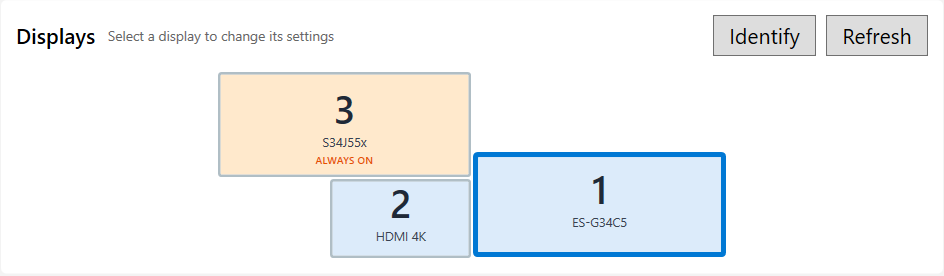
Click it on the map (the same layout as Windows' display settings) and tick Always on.
Turn on Night mode
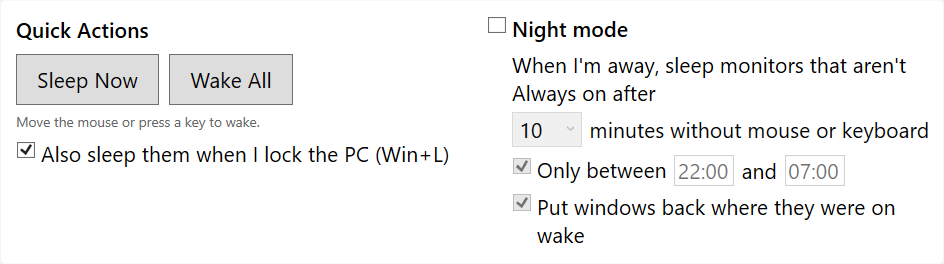
Choose how long you can be away before the other screens sleep.
Walk away
The other monitors sleep. Your cameras stay up. Move the mouse and everything is back where you left it.
Monitors that support DDC/CI (most do) get a real sleep command over the display cable. For TVs and monitors without it, BranchOut Display can turn off their signal so they drop into standby on their own. More →
What it does
Always on
Mark your camera or dashboard screen Always on. It never sleeps, and Windows can't turn it off either.
Night mode
Walk away and the other monitors sleep after the time you choose, optionally only overnight.
Sleep Now and lock to sleep
One click, or just Win+L, puts every screen except your always-on ones to sleep.
Works with any monitor
DDC/CI monitors get a real sleep. TVs and monitors without it can have their signal turned off.
Windows stay where you left them
If Windows shuffles your windows while a monitor sleeps, BranchOut Display puts them back on wake.
Quiet in the tray
Starts with Windows, lives in the tray, and never leaves a monitor stuck off: restart it and every screen comes back.
Help built in, even offline
The ? button opens help inside the app. If a monitor won't sleep or won't wake, the fix is a click away, and Contact Support files a ticket with the log attached if you want it to.
Runs entirely on your PC
No account, no cloud, no ads, no third-party trackers. An update check, crash reports, and anonymous usage counts you can turn off. Nothing about what's on your screens.
Coming to the Microsoft Store
Free. No account, no trial, no ads.
Read the getting-started guideWindows 10/11 · DDC/CI monitors get a true per-screen sleep · Store listing in progress
Want audio on every speaker at once? That's BranchOut Audio.